

Idea to a Live Site
Build a Website With AI and Put It Live in One Chat
Describe the site, watch it take shape in a preview next to you, and deploy it when it looks right.
 Your Keys
 Hot-Swap AI Plans
 No Data Training
 Desktop-First
The problem
Why Small Sites Take Longer Than They Should
The page itself is rarely the hard part. Setting up the project, the tooling, a dev server, a preview, and a deployment pipeline is, and every step happens in a different tool.
- Project setup
- Tooling
- A dev server
- A preview
- A deploy pipeline
How PandaOS Gets It Live
The starter sets up the stack, the agents and the dev server, so the first thing you type is what the site should say.
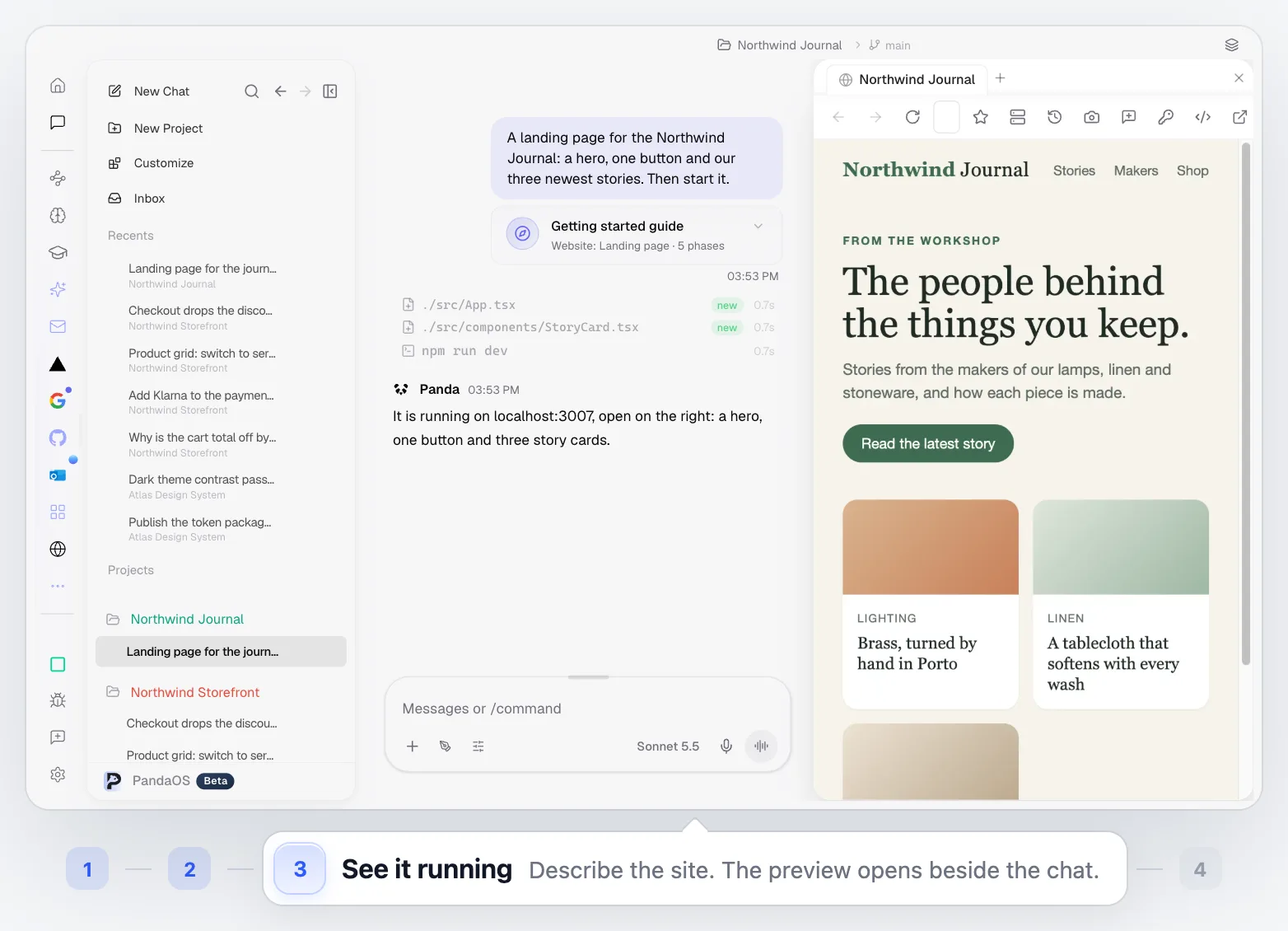
A landing page for the Northwind Journal: a hero, one button and our three newest stories. Then start it.
- 01
Pick a Starter
Choose a project starter. PandaOS sets up the project, with its own rules, skills and dev server.
Chat - 02
Describe the Site
Say what the page should show, in plain words.
Chat - 03
PandaOS Builds It
It writes the files and starts the dev server from the built-in terminal.
Built-in terminal - 04
See It Running
The preview opens in the built-in browser, beside the chat.
Built-in browser - 05
Change Anything
Ask for edits and watch them land in the same preview.
Built-in browser - 06
Deploy It Live
Deploy the site through your own Vercel project and get a live URL to share.
Vercel
Best for Getting Something Real in Front of People
When the goal is a working, shareable site today, not a setup project.
Landing Pages
Build a landing page with AI for a product, an event or an idea, and share the link the same day.
Prototypes for Feedback
Put a working version on a real address instead of sending screenshots.
Quick Copy and Layout Changes
Update a hero, check it in the preview, and ship it, all from one chat.
Side Projects
Skip the boilerplate and spend the evening on the part you care about.
Built Into the Rest of PandaOS
The parts of PandaOS this workflow runs on, each worth a look on its own.
Go From Idea to Address Today
The site you have been meaning to build is one request away from a link you can send.
FAQ
What is a project starter?
A ready-made starting point for a new project. Pick one and PandaOS sets up the project with the agents, skills, rules and dev server that kind of project needs.
Where does the preview run?
On your own machine. PandaOS starts the dev server locally and opens it in the built-in browser beside the chat.
Do I need a Vercel account?
For this deploy, yes: PandaOS deploys through your connected Vercel project. You can also keep using any Git-based deployment flow you already have.
Do I own the code?
Yes. The project is a normal folder of code on your machine, so there is nothing to export. Edit it in PandaOS or in your own editor.
Can I start from an existing project instead?
Yes. Add any existing project to PandaOS and use the same build, preview and deploy flow on it.


